

A slow checkout is the most expensive kind of slow. A visitor who waits on a product page might leave. A customer who waits after clicking Place order might click it twice, or give up with their card in hand.
The frustrating part is that most “speed up WooCommerce” advice doesn’t touch checkout. Page caching, the usual first fix, can’t be applied to the cart and checkout because they’re different for every customer. To fix a WooCommerce slow checkout, you need to find where the time goes on the server and in the browser.
Here are the seven causes I find most often, how to confirm each one, and how to fix it.
First, measure: where does the time go?
Before changing anything, split the problem in two:
- Slow to load the checkout page → usually front-end scripts, cart fragments or heavy plugins
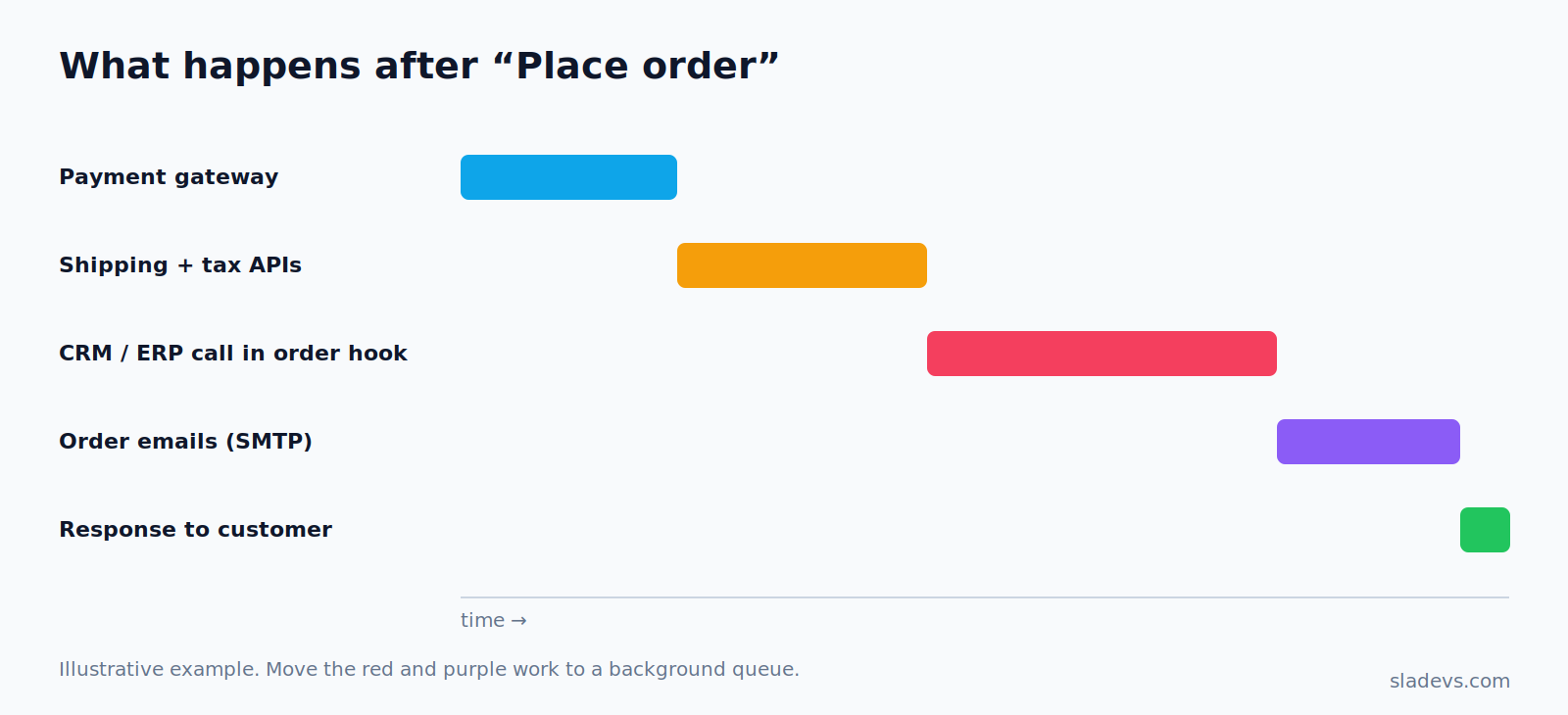
- Slow after clicking “Place order” → usually server-side work: payment, shipping/tax APIs, order hooks, emails
Tools you need:
1. Browser DevTools → Network tab. Filter by ?wc-ajax=. Look at update_order_review and checkout request times.
2. Query Monitor (free plugin). Shows slow database queries, HTTP API calls and which plugin made them.
3. Your host’s PHP slow log, if available.
If ?wc-ajax=checkout takes 6 seconds, the answer is on the server. If the page itself takes 6 seconds before you can type, it’s the front end.
1. Synchronous API calls in order hooks
The most common cause I see. A plugin, or custom code, hooks into order creation and calls an external API while the customer waits: a CRM, an ERP, a marketing tool, a fulfilment service. If that API takes 3 seconds, your checkout takes 3 seconds longer. If it times out, the customer sees an error even though the order was created.
How to confirm: In Query Monitor, open HTTP API Calls on the checkout request. Any external call there is time the customer is waiting.
Fix: Move the call to a background job. WooCommerce ships with Action Scheduler, so you don’t need anything extra:
<?php
// Instead of calling the CRM API while the customer waits...
add_action( 'woocommerce_checkout_order_processed', function ( $order_id ) {
    // ...queue the work to run in the background a few seconds later.
    // as_enqueue_async_action() is provided by Action Scheduler (bundled with WooCommerce).
    as_enqueue_async_action(
        'sladevs_sync_order_to_crm',   // Our own hook name.
        array( 'order_id' => $order_id ), // Data the job needs later.
        'sladevs-crm'                  // Group, so these jobs are easy to find in Tools → Scheduled Actions.
    );
} );

// This runs in the background — the customer has already seen "Thank you".
add_action( 'sladevs_sync_order_to_crm', function ( $order_id ) {
    $order = wc_get_order( $order_id );
    if ( ! $order ) {
        return; // Order was deleted; nothing to do.
    }
    // Call your CRM here. If it throws, Action Scheduler marks the job as failed
    // and it stays visible in wp-admin instead of breaking checkout.
} );
This is exactly how I built a CRM sync built with a background queue. The customer never waits on the CRM.
2. Transactional emails sent during checkout
WooCommerce sends the “New order” and customer confirmation emails during the checkout request by default. With a slow SMTP server, or several admin recipients, that can add seconds.
Fix: WooCommerce has a built-in filter to defer these emails to the background:
<?php
// Send order emails in the background instead of during the checkout request.
// WooCommerce queues them and sends them right after the response is returned.
add_filter( 'woocommerce_defer_transactional_emails', '__return_true' );
Also make sure you’re sending through an API-based mail service (Postmark, SES, SendGrid) rather than your host’s mail().
3. Live shipping and tax rate lookups
Carrier-calculated shipping (UPS, FedEx, DHL) and external tax services call an API every time the checkout recalculates, which happens on each address change. Three carriers × two recalculations = six API calls.
Fix:
– Cache rate responses per cart and address. Many shipping plugins have a cache setting that is off by default.
– Reduce the number of carriers or services queried.
– Consider flat or table rates for common zones, with live rates only for edge cases.
4. Cart fragments on every page
wc-cart-fragments refreshes the mini-cart via AJAX. On some setups it fires on every page load, uncached, which increases server load and competes with checkout requests during busy periods.
Fix: Recent WooCommerce versions load it only where a mini-cart is present. If your theme still loads it everywhere, dequeue it on pages without a mini-cart. Test that your cart icon still updates.
5. Too many plugins hooked into checkout
Every plugin that adds a checkout field, upsell, validation or tracking pixel adds work. Individually they’re small. Together they add up, especially plugins that run database queries on every update_order_review call.
How to confirm: Query Monitor → Queries by Component, on a checkout AJAX request.
Fix: Remove what you don’t use, and replace overlapping plugins with one lean customization. Often a few lines of hook-based code replace an entire plugin.
6. A bloated sessions table and autoloaded options
WooCommerce stores carts in wp_woocommerce_sessions. On busy or bot-heavy stores, this table can grow huge. Separately, plugins store settings in wp_options with autoload = yes, which loads on every request.
Fix:
– Make sure expired sessions are cleaned up (a WooCommerce cron job does this, so check that WP-Cron actually runs).
– Check the autoload size: SELECT SUM(LENGTH(option_value)) FROM wp_options WHERE autoload IN ('yes','on'); Anything over about 1 MB deserves a look.
– Add a persistent object cache (Redis) so repeated lookups don’t hit the database.
7. Heavy front-end scripts on the checkout page
Payment scripts, chat widgets, analytics tags and theme JavaScript all compete for the main thread, making the checkout feel laggy to type in. This also hurts INP, one of the Core Web Vitals.
Fix: Don’t load chat widgets and non-essential tags on checkout. Load payment scripts only for the selected gateway where the gateway allows it. Defer everything else.
A quick checklist
| Check | Tool | Good sign |
|---|---|---|
?wc-ajax=checkout time | DevTools | Under 1.5 s |
| External HTTP calls during checkout | Query Monitor | None, or only the payment gateway |
| Emails deferred | Code/filter | woocommerce_defer_transactional_emails true |
| Autoloaded options size | SQL | Under about 1 MB |
| Object cache | Site Health | Persistent cache active |
| Scripts on checkout | DevTools | No chat/marketing widgets |
If checkout is still slow after this, the cause is usually specific to your plugin mix or custom code, and that’s where slow wp-admin problems often come from too.
Need help?
I fix slow WooCommerce stores for businesses and agencies worldwide. See WooCommerce speed optimization, or send me your checkout URL and I’ll share what I see first.