

Your storefront can be fast while your team loses an hour a day waiting on wp-admin: order lists that take 10 seconds to load, product edits that hang on save, dashboards that spin. When WooCommerce admin is slow, it’s rarely one big problem. It’s usually several small ones stacked together.
The reason it’s so noticeable: admin pages are never cached. Every click in wp-admin runs all your database queries and plugin code live, so admin speed shows your store’s real backend performance.
Here are six fixes, in the order I usually check them, with how to confirm each one before you change anything.
Step 0: Measure before you fix
Install the free Query Monitor plugin and open your slowest admin screen, usually WooCommerce → Orders. Note three things:
- Page generation time, shown in the admin toolbar
- Queries by Component: which plugin runs the most or slowest queries
- HTTP API Calls: any request to an outside server that the page waits for
Write the numbers down for your 3 slowest screens. After each fix, check again. That way you know what actually helped.
1. Switch to HPOS (High-Performance Order Storage)
Older stores keep orders in wp_posts and wp_postmeta, tables designed for blog posts, not for thousands of orders with dozens of fields each. To filter or sort the orders list, WordPress has to join huge meta tables.
HPOS moves orders into dedicated tables, which is much faster for order screens, search and reports.
How: WooCommerce → Settings → Advanced → Features → High-performance order storage. Turn on compatibility mode (sync) first, check that your plugins are marked compatible, test on staging, then switch fully.
⚠️ Watch for custom code. Code that reads order data with get_post_meta() breaks under HPOS. It must use the order object instead:
<?php
// ❌ Old way: reads the posts table directly, breaks when HPOS is on.
$phone = get_post_meta( $order_id, '_billing_phone', true );

// ✅ HPOS-safe: ask WooCommerce for the order, then read from the object.
// This works whichever storage (posts or HPOS tables) the store uses.
$order = wc_get_order( $order_id );
$phone = $order ? $order->get_billing_phone() : '';
This is one of the most common problems when switching to HPOS, and why I only write HPOS-compatible custom code.
2. Clean up Action Scheduler
WooCommerce, and many plugins, queue background jobs in Action Scheduler. Completed and failed jobs are kept in the database. On busy stores, the wp_actionscheduler_actions and wp_actionscheduler_logs tables can grow to millions of rows, slowing every admin screen that touches them.
Check: Tools → Scheduled Actions. Look at the counts next to Complete and Failed.
Fix: keep completed jobs for less time. The default is 30 days.
<?php
// Keep completed scheduled actions for 7 days instead of 30.
// Action Scheduler's own clean-up job then deletes older rows automatically.
add_filter( 'action_scheduler_retention_period', function () {
	return 7 * DAY_IN_SECONDS; // DAY_IN_SECONDS is a WordPress constant (86,400 seconds).
} );
Also look at why jobs fail. Thousands of failed actions usually point to a broken integration that is retrying forever.
3. Find plugins that “phone home” on every admin page
Some plugins check licences, fetch news or load remote dashboards on every admin page load. If their server is slow, your admin is slow.
Check: Query Monitor → HTTP API Calls. Any outside request on a normal admin page is a suspect.
Fix: update the plugin, disable its dashboard widget or notices, or replace it. To find offenders across many screens, this temporary snippet logs every slow outside request:
<?php
// DIAGNOSTIC ONLY: logs outside HTTP requests from wp-admin that take over 1 second.
// Remove it once you've found the culprit.

// Step 1: remember when each request starts.
add_filter( 'pre_http_request', function ( $pre, $args, $url ) {
	$GLOBALS['sladevs_http_start'][ $url ] = microtime( true );
	return $pre; // Returning $pre unchanged lets the request continue normally.
}, 10, 3 );

// Step 2: when the response arrives, work out how long it took.
add_action( 'http_api_debug', function ( $response, $context, $class, $args, $url ) {
	if ( ! is_admin() || empty( $GLOBALS['sladevs_http_start'][ $url ] ) ) {
		return; // Only measure admin requests we timed in step 1.
	}
	$seconds = microtime( true ) - $GLOBALS['sladevs_http_start'][ $url ];
	if ( $seconds > 1 ) {
		error_log( sprintf( '[slow-admin-http] %.2fs — %s', $seconds, $url ) );
	}
}, 10, 5 );
Turn on WP_DEBUG_LOG in wp-config.php, click through a few admin screens, then check wp-content/debug.log.
4. Slow down the Heartbeat API
WordPress Heartbeat sends a request to admin-ajax.php every 15–60 seconds from every open admin tab. Five staff with a few tabs each means constant background load on your server.
Don’t disable it completely, because it powers autosave and post locking. Just slow it down:
<?php
// Send the admin Heartbeat once every 60 seconds instead of every 15.
add_filter( 'heartbeat_settings', function ( $settings ) {
	$settings['interval'] = 60; // Seconds between Heartbeat requests.
	return $settings;
} );
5. Reduce autoloaded options
WordPress loads every “autoloaded” option on every request, admin included. Deactivated plugins often leave large ones behind. WordPress Site Health warns you when the total goes over about 800 KB.
Find the biggest ones (back up your database first):
-- Largest autoloaded options first.
-- WordPress 6.6+ uses 'on' / 'auto-on' / 'auto'; older versions use 'yes'.
SELECT option_name, LENGTH(option_value) AS size_bytes
FROM wp_options
WHERE autoload IN ('yes', 'on', 'auto-on', 'auto')
ORDER BY size_bytes DESC
LIMIT 20;
Large options from plugins you no longer use can usually be deleted. For big options from active plugins, ask the plugin author before changing them.
6. Add a persistent object cache (Redis)
Without an object cache, WordPress repeats the same database lookups on every request. Redis keeps those results in memory between requests. On WooCommerce admin, it’s often the biggest single improvement once the problems above are fixed.
Most managed hosts offer Redis. Turn it on in your hosting panel, install the Redis Object Cache plugin, and confirm it shows Connected in Site Health or the plugin’s settings.
Bonus: WooCommerce Analytics
The Analytics dashboard runs heavy report queries. If your team doesn’t use it, you can turn it off under WooCommerce → Settings → Advanced → Features, where your version offers that option.
Summary
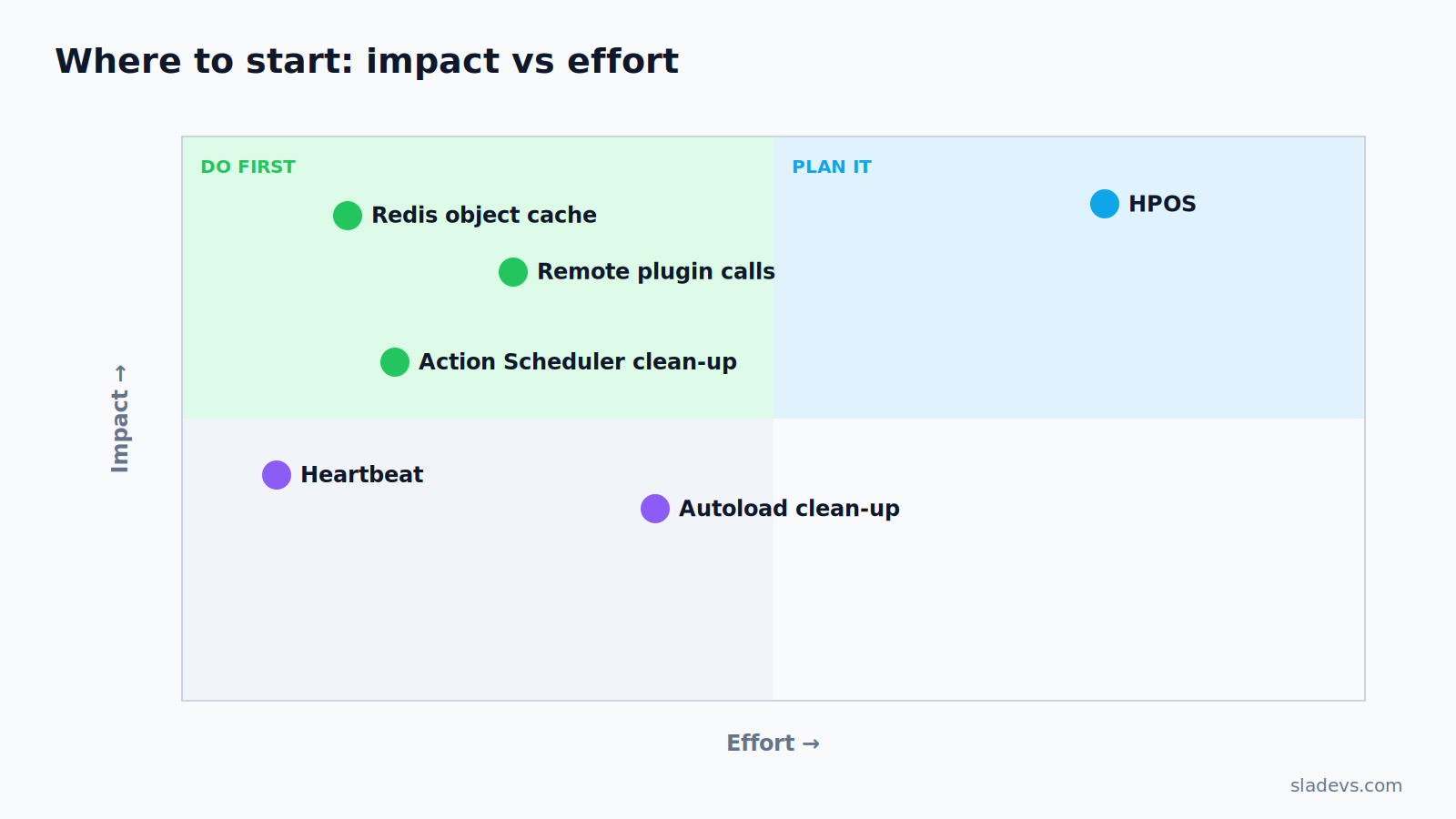
| Fix | Effort | Typical impact |
|---|---|---|
| HPOS | Medium (test plugins first) | High on order screens |
| Action Scheduler clean-up | Low | Medium–High on busy stores |
| Remote plugin calls | Low | High when present |
| Heartbeat | Low | Medium with several staff |
| Autoload clean-up | Low–Medium | Medium |
| Redis object cache | Low | High |
If customers also wait at checkout, read slow WooCommerce checkout. Many of the causes overlap.
Want this fixed for you?
I run fixed-price performance audits covering the storefront, checkout and wp-admin, with a prioritised list of fixes. Dealing with a slow admin right now? Send me the details and I’ll reply within 24–48 hours.