
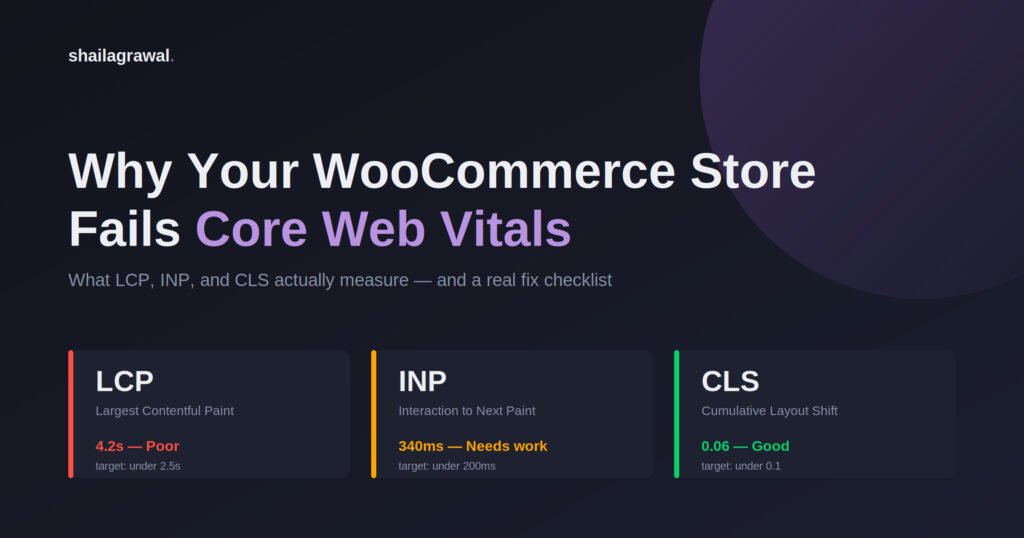

Run almost any WooCommerce store through PageSpeed Insights and you’ll see the same pattern: a red or amber score, a list of “opportunities” that don’t quite explain what to actually do, and a store owner who installs a caching plugin, sees no real change, and gives up.
That’s usually not because WooCommerce is slow by nature. It’s because most stores are failing Core Web Vitals for the same three reasons — and none of them get fixed by installing a plugin and walking away.
This is a practical breakdown of what’s actually being measured, why WooCommerce stores specifically tend to fail it, and what a real fix looks like — including which caching plugin actually makes sense for your setup, and why a CDN isn’t optional for a store with real traffic anymore.
What LCP, INP, and CLS Actually Measure (No Jargon)
Google’s Core Web Vitals are three metrics, and each one answers a different question a shopper is silently asking.
LCP — Largest Contentful Paint “How long until the main thing on this page actually shows up?” On a product page, that’s usually the main product image. On your homepage, it might be a hero banner. LCP measures the time from when the page starts loading to when that biggest, most important element is fully visible. Google wants this under 2.5 seconds.
INP — Interaction to Next Paint This replaced FID (First Input Delay) in March 2024, and a lot of older guides online still reference the old metric — worth knowing if you’re reading around on this. INP measures “when I click ‘Add to Cart’, how long until the page actually responds?” It’s not just the first click anymore — it’s every interaction across the whole page visit, and it takes the worst one. A good INP is under 200 milliseconds.
CLS — Cumulative Layout Shift “Did the page jump around while I was trying to use it?” This is the metric behind that annoying moment where you’re about to tap “Add to Cart” and an ad or a late-loading image pushes the button down, so you tap the wrong thing. CLS measures how much visible content shifts unexpectedly. Google wants this under 0.1.
All three matter for two separate reasons: they’re a confirmed Google ranking signal, and — more directly — they correlate with conversion rate. A store that’s slow to show the product, slow to respond to “Add to Cart”, and jumpy at checkout is a store that loses sales regardless of what Google thinks.
The Real WooCommerce-Specific Offenders
Generic WordPress speed advice (“minify your CSS!”) only gets you partway. WooCommerce fails Core Web Vitals for reasons specific to how a store is built and used.
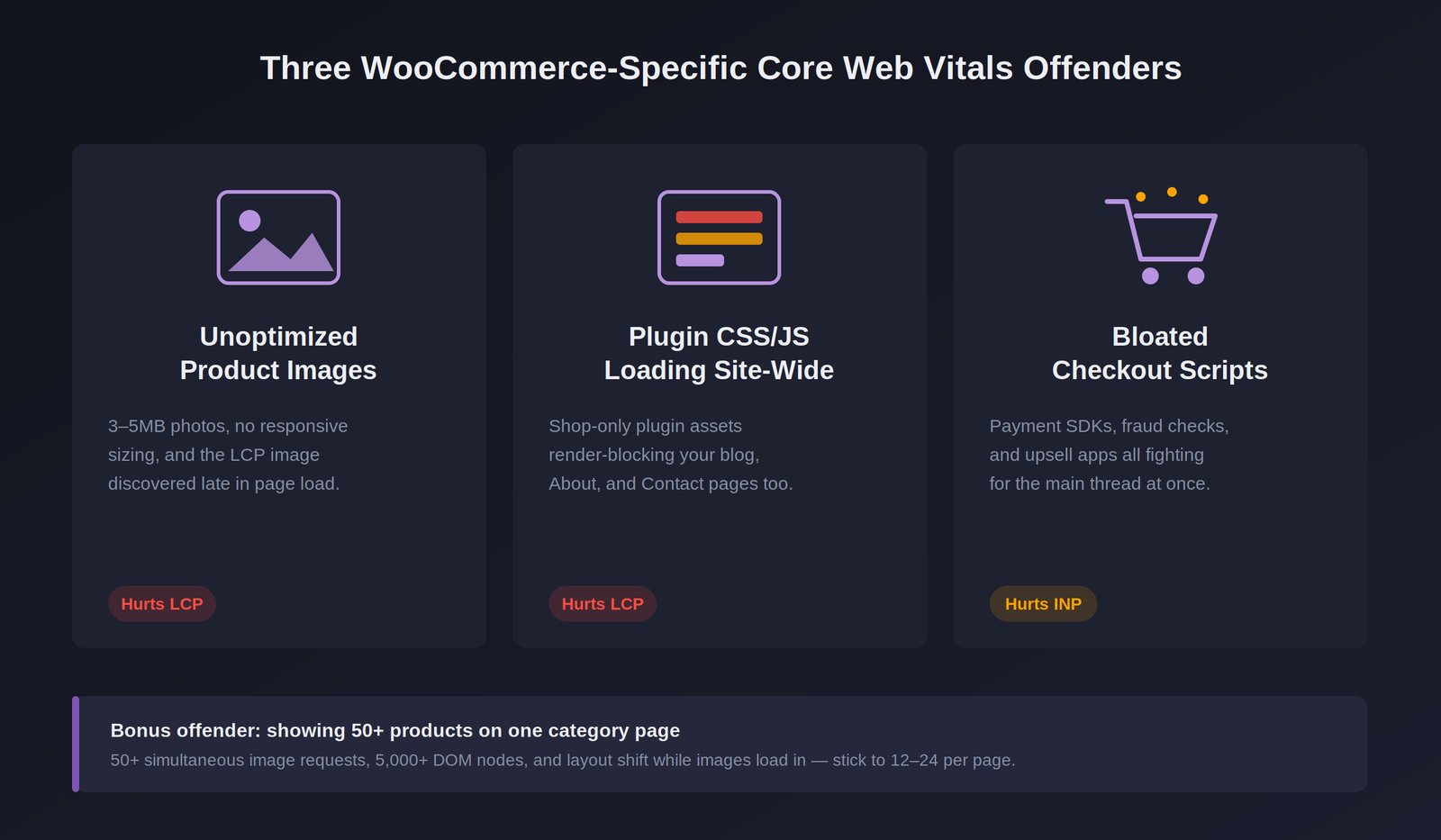
1. Unoptimized product images
This is the most common LCP killer, and it’s rarely about “one big image.” It’s usually:
- Product photos uploaded straight from a camera or a supplier’s media kit — often 3-5MB each, when a product image never needs to be more than 200-400KB
- No responsive sizing, so a phone downloads the same 2000px-wide image as a 4K desktop monitor
- The main product image not being prioritized for early loading, so the browser discovers it late in the page load
Fix priority: convert to WebP (or AVIF where supported), serve properly sized images per device with srcset, and make sure the LCP image itself is not lazy-loaded — more on that below.
2. Render-blocking plugin CSS/JS loading on every single page
This is the one store owners miss most often. WooCommerce and most WooCommerce plugins (reviews, wishlists, currency switchers, upsell popups) load their CSS and JS site-wide by default — on your blog posts, your About page, your contact page — even though that code is only needed on shop and product pages.
Every one of those unnecessary files is still a render-blocking request the browser has to deal with before it can paint the page, on pages where it does nothing. This alone can add several hundred milliseconds to LCP on pages that have nothing to do with your store.
Fix: most decent caching/optimization plugins (see below) let you selectively disable CSS/JS loading per page type. If a page isn’t a shop, cart, or checkout page, it doesn’t need WooCommerce’s assets.
3. Bloated checkout scripts
Checkout is where INP problems concentrate. Payment gateway SDKs (Stripe, PayPal, Razorpay), fraud-detection scripts, upsell/order-bump plugins, and analytics tracking often all load — and all try to initialize — on the same page, at the same time, fighting for the main thread. That’s exactly the scenario that produces a slow, laggy response when a customer clicks “Place Order.”
Fix: defer everything that doesn’t need to run immediately, and audit checkout-page plugins ruthlessly — every “smart” checkout upsell app is a genuine performance cost, not a free feature.
The offender nobody talks about: showing too many products on one page
If you’re one of the stores showing 48, 60, or “all products” on a single category page because it feels more generous to the shopper — this is quietly one of the worst things you can do to your Core Web Vitals.
Here’s why it actually hurts, mechanically:
- Every product on the page fires its own image request. 50 products means 50+ simultaneous image downloads competing for bandwidth with the one image that actually determines your LCP.
- Each product card adds DOM nodes — quick-view buttons, wishlist icons, rating widgets, add-to-cart AJAX handlers. A 50-product grid can easily mean 5,000+ DOM nodes on one page, which slows down every script that has to touch the page (and worsens INP, since more DOM = more work per interaction).
- More products per page usually means more layout instability while images load in at different speeds, which directly hurts CLS.
The realistic fix: 12-24 products per page is the sweet spot for most stores — enough to feel substantial, not enough to choke the page. Use real pagination (not “load more” that keeps appending to the same DOM) or, if you want infinite scroll, make sure old products are unmounted from the DOM as new ones load in, not just piled on top.
How to Read a PageSpeed Insights Report Without Getting Overwhelmed
The score (0-100) is the least useful number on the page. Focus on three things instead:
- Field data vs. lab data. If you see a “Field Data” section at the top, that’s real user data from actual visitors (via the Chrome UX Report) — this is what Google actually uses for ranking. The “Lab Data” below it is a single simulated test run. If they disagree, trust field data; lab data can vary run to run based on server load and network conditions at that exact moment.
- The LCP element callout. PageSpeed Insights tells you exactly which element on the page it identified as your Largest Contentful Paint. This is the single most useful piece of information on the report — it tells you exactly what to optimize instead of guessing.
- The “Opportunities” list, ranked by potential savings. Ignore anything estimating under 0.1s of savings. Work top-down on the ones with the biggest time savings first — that’s where the actual return is.
Everything else on the report (diagnostics, passed audits) is secondary. Fix the top 2-3 opportunities, re-test, repeat.
The Real Fix Checklist
- Convert images to WebP (or AVIF), and compress before upload — most plugins below do this automatically going forward, but existing media library images usually need a bulk conversion pass
- Lazy-load everything below the fold — but never the LCP image itself. Lazy-loading your hero/main product image is one of the most common self-inflicted LCP mistakes; it delays the exact element Google is timing
- Defer non-critical JS (chat widgets, non-essential trackers, below-the-fold interactive elements) so it loads after the page is usable, not before
- Limit products per page to 12-24 with real pagination, as covered above
- Configure page caching properly — not just “install and forget,” but actually verify cache is serving on product and category pages, since some caching plugins exclude WooCommerce pages by default to avoid stale cart data
Caching Plugins That Actually Help: LiteSpeed Cache vs. WP Rocket
Not all caching plugins are interchangeable, and which one is “best” genuinely depends on your hosting stack — this is the part most generic advice skips.
LiteSpeed Cache is the strongest option if, and only if, your hosting actually runs on LiteSpeed Web Server (LSWS or OpenLiteSpeed). You can check this in your hosting control panel, or by looking for an X-LiteSpeed-Cache header in your site’s response headers. When your server is genuinely LiteSpeed, this plugin does server-level page caching (faster than PHP-level caching most other plugins rely on) and gives you free integration with QUIC.cloud CDN — a real CDN with image optimization, all from the same plugin, at no extra licensing cost. For a WooCommerce store on LiteSpeed hosting, this is close to the best-value setup available.
If your server isn’t LiteSpeed — you’re on standard Apache or Nginx (most shared and many managed WordPress hosts) — installing LiteSpeed Cache gets you almost none of its real advantage, since the server-level caching it depends on simply isn’t there.
WP Rocket is the better call in that case. It works identically well on Apache, Nginx, or LiteSpeed, handles the fundamentals (page caching, CSS/JS minification and deferral, lazy loading, database cleanup) reliably out of the box, and is genuinely easier to configure correctly for someone who isn’t going to spend a weekend in caching documentation. It’s a paid plugin, but for a store that depends on page speed for revenue, that’s a reasonable trade for something that works correctly the first time.
Bottom line: check your server stack first. LiteSpeed hosting → LiteSpeed Cache. Anything else → WP Rocket.
Why a CDN Isn’t Optional Anymore
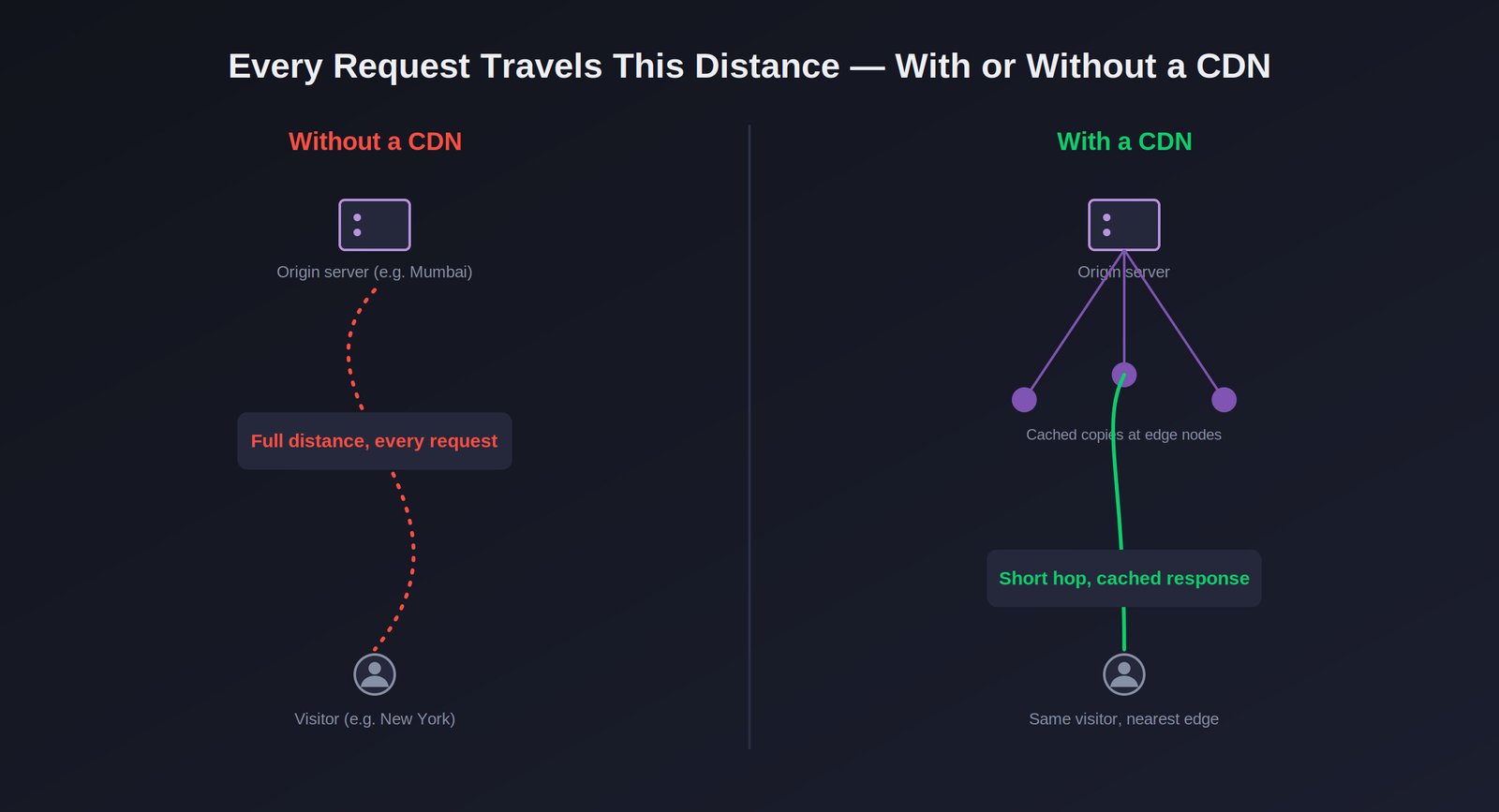
A CDN (Content Delivery Network) stores cached copies of your site’s static assets — images, CSS, JS — on servers physically distributed around the world, and serves each visitor from whichever copy is geographically closest to them.
Without one, every visitor’s request travels all the way to your single origin server, wherever it’s hosted. If your server is in Mumbai and a customer is browsing from the US, every image, every stylesheet, every script has to cross that entire distance before anything can render — that’s pure latency added directly to your LCP, before your site even starts doing any real work.
With a CDN in front of your store:
- TTFB (Time to First Byte) drops significantly for any visitor not physically near your origin server, since static assets are served from a nearby edge node instead
- Your origin server gets offloaded — it’s no longer serving every single image request for every single visitor, which matters a lot during traffic spikes (sales, ad campaigns) when your server would otherwise be doing double duty: handling dynamic WooCommerce requests and serving thousands of static files
- Most CDNs (QUIC.cloud included) add automatic image optimization on top of pure distribution, compressing and converting formats without you touching the original files
If you’re on LiteSpeed hosting with LiteSpeed Cache, QUIC.cloud CDN is the natural, already-integrated choice. If you’re on WP Rocket, it pairs well with Cloudflare or Bunny CDN — both have straightforward WordPress setup guides and free or near-free entry tiers that are more than enough for most stores.
For any store with customers outside a single metro area — which is most stores — a CDN is no longer a “nice to have.” It’s one of the highest-impact, lowest-effort changes available.
How This Actually Plays Out in the Browser, in Real Time
It helps to picture what’s actually happening in the few seconds after someone lands on a product page:
- The browser requests the HTML document from your server (this trip is shorter with a CDN and proper caching)
- As HTML arrives, the browser discovers CSS and JS files referenced in it — every render-blocking stylesheet has to be downloaded and parsed before the browser can paint anything below it
- The browser discovers images referenced in the HTML — including your product photo — and starts downloading them, but only after it’s worked through step 2’s blocking resources
- Once the largest visible element (usually that product image) finishes rendering, LCP is recorded
- As the customer starts interacting — clicking size options, scrolling, tapping “Add to Cart” — every plugin script that initialized on page load is now competing for the main thread to respond to those interactions; that competition is what shows up as INP